How to Connect Your Woo Commerce Store
Before Getting Started
Before connecting your store to ShipHero you will need to enable WordPress permalinks and obtain a REST API Key. Instructions on how to do this are below.
Enable WordPress permalinks
- Log in to your WordPress Admin Panel and go to Settings > Permalinks
- Make sure that your Wordpress Permalinks are set to Post Name.
Generate a WooCommerce REST API Key
- Login to your WordPress Admin Panel
- Go to WooCommerce > Settings > Advanced > REST API
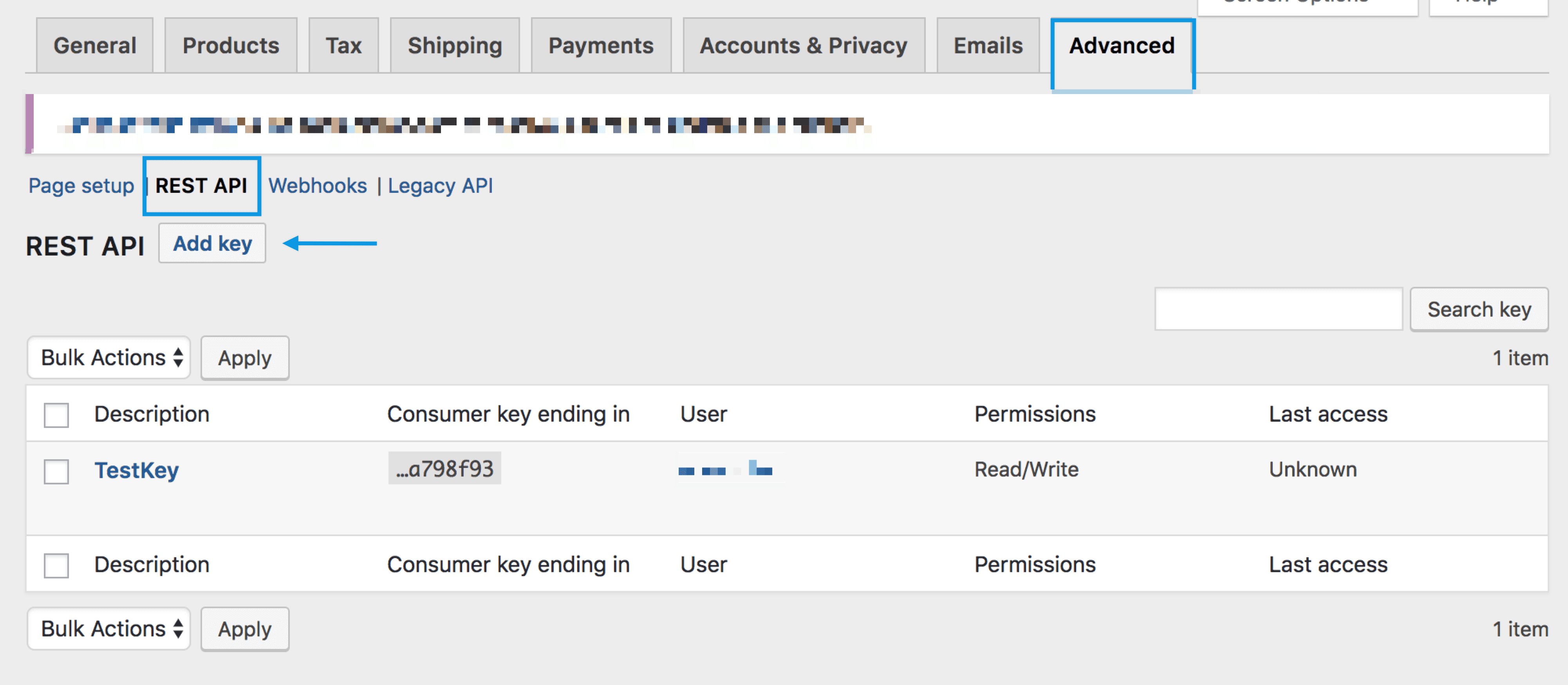
- Select Add Key. You are taken to the Key Details screen.
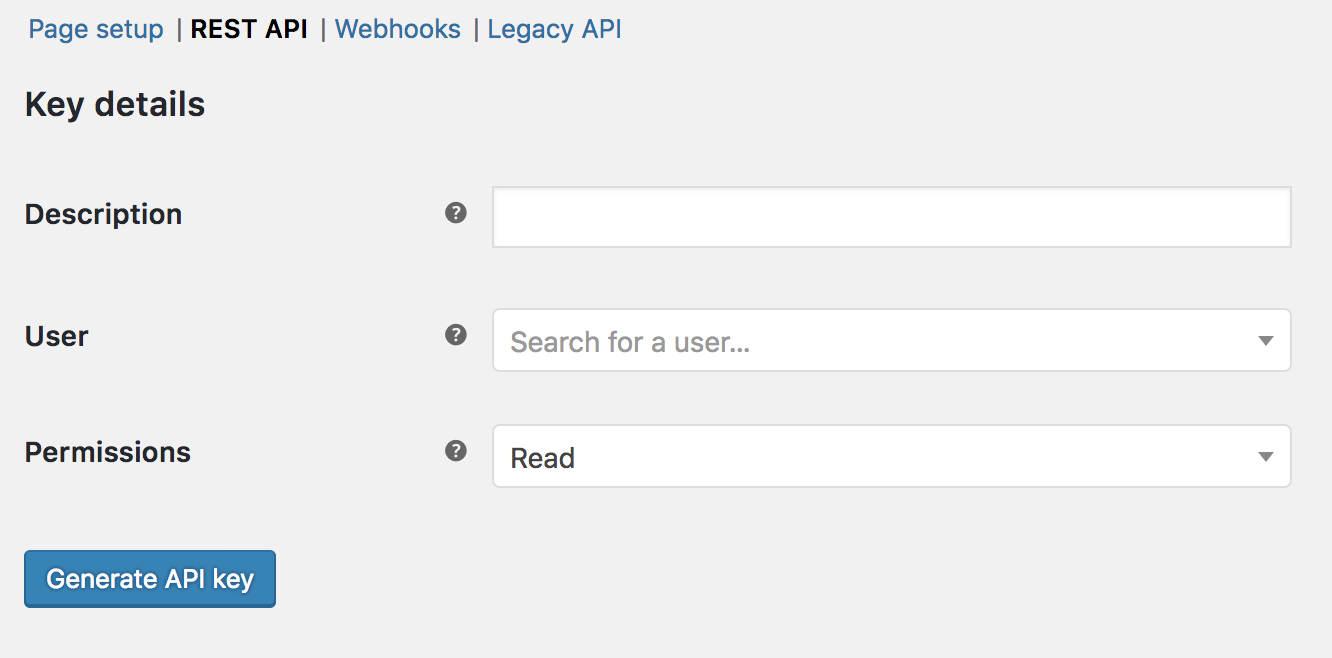
- Add a Description
- Select the User you would like to generate a key for in the dropdown
- Set permissions to Read/Write
- Select Generate API Key
Enable the Legacy REST API
- Go to WooCommerce > Settings > Advanced > Legacy API
- Click the "Enable the Legacy REST API" checkbox
- ShipHero uses the Legacy V3 API version, the latest by default. We can connect a store that uses V2 API, though be aware WooCommerce and ShipHero will depreciate it eventually.
Connect WooCommerce to ShipHero
Once a REST API key has been obtained and the Legacy REST API has been enabled on your WooCommerce store, then you are ready to connect your store to ShipHero!
- Login to app.shiphero.com and route to My Account > Stores
- Click Add a New Store and select WooCommerce
- Give your store a name, enter your Consumer Key and Secret, and the URL for your store into the ShipHero form then click Connect
NOTE: We recommend subscribing to WooCommerce's Shipment Tracking plugin so that tracking information is provided to customers.
If you have the plugin installed, you can disable the "Add Tracking Number to Customer Notes" option to prevent multiple notifications being sent to the customer.